Alhena
Family task app that turns email notices into drafts a parent must approve
- Sector
- Family task app
- Location
- Online
- Year
- 2026
- Role
- Design · Development
The brief
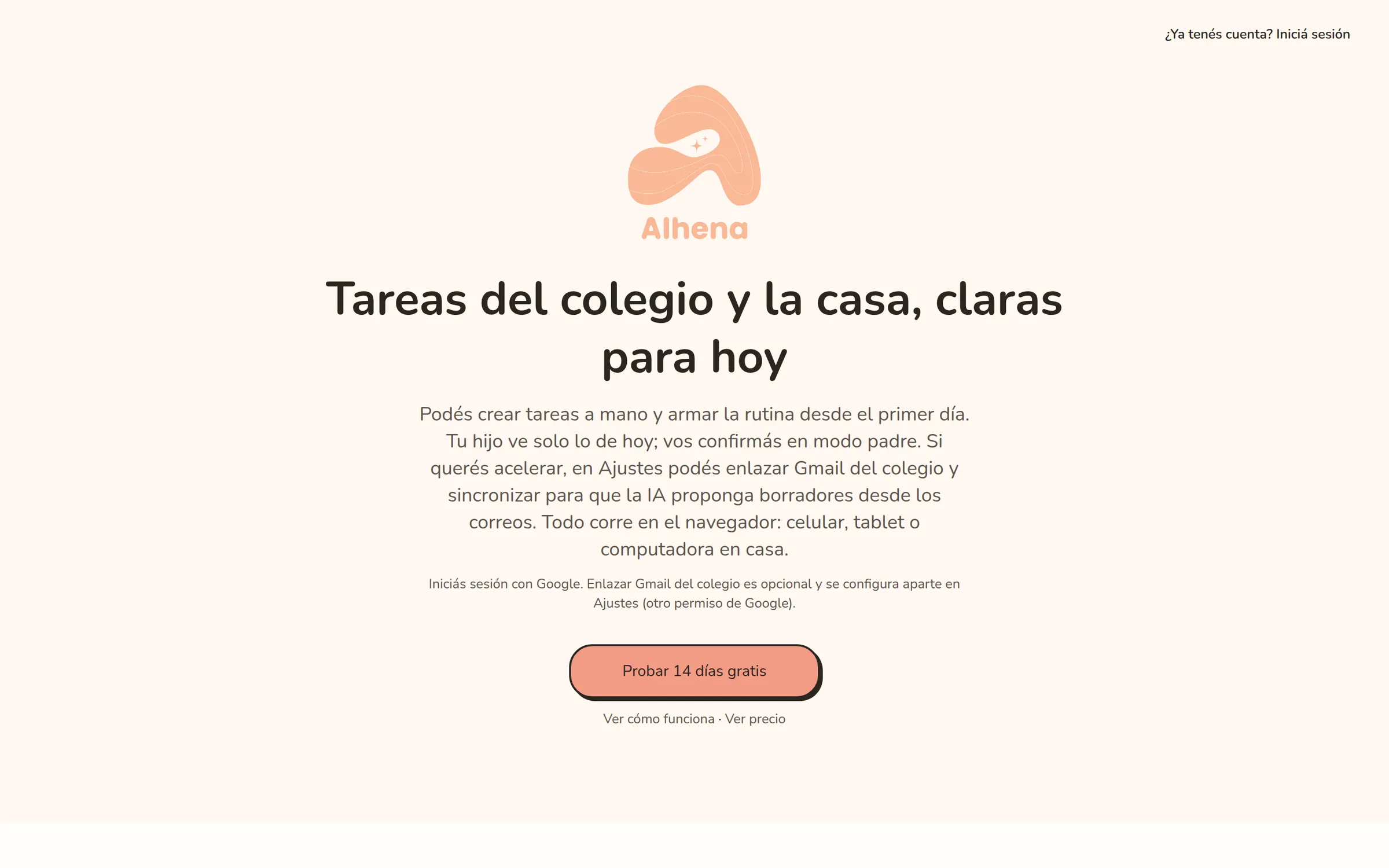
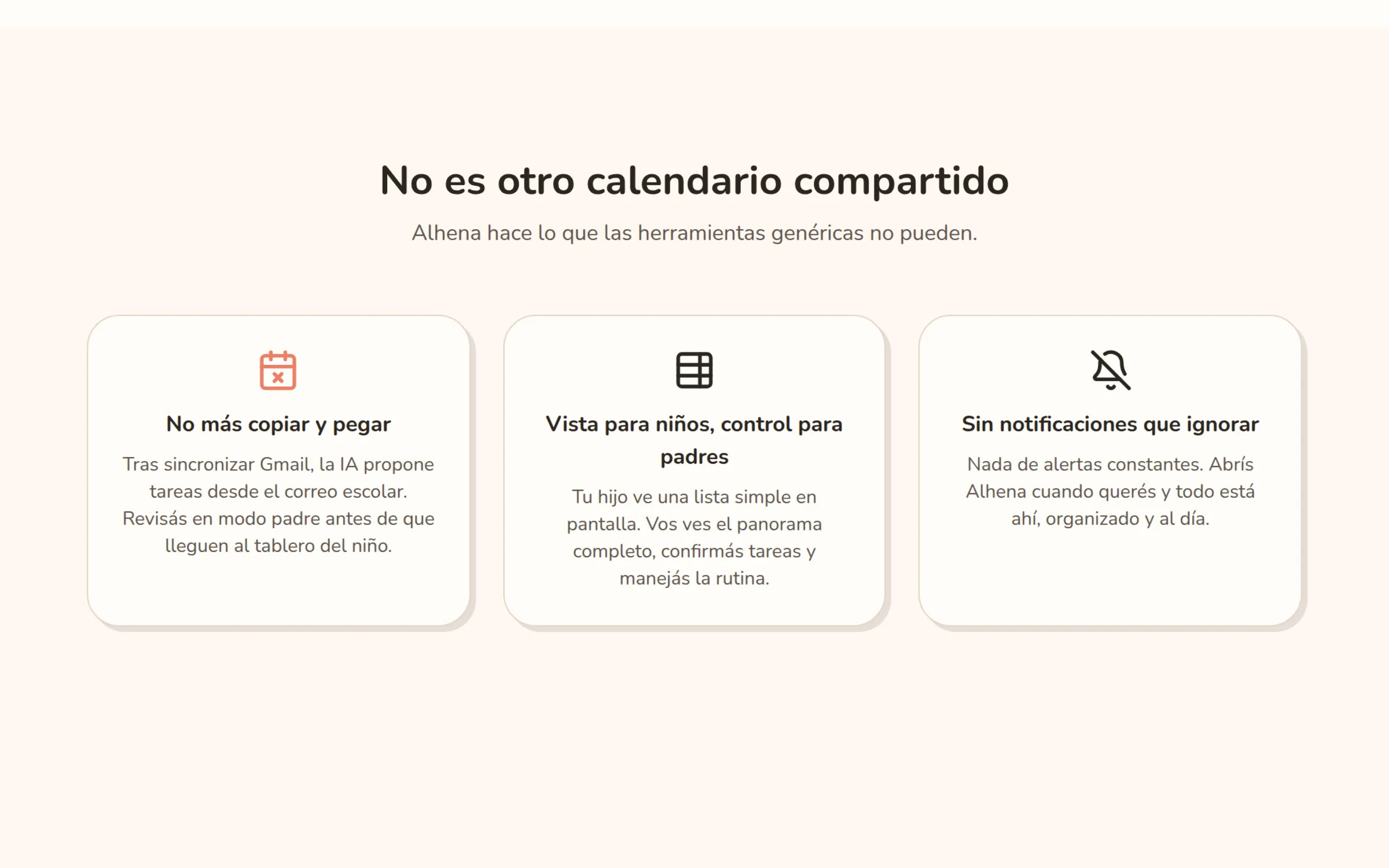
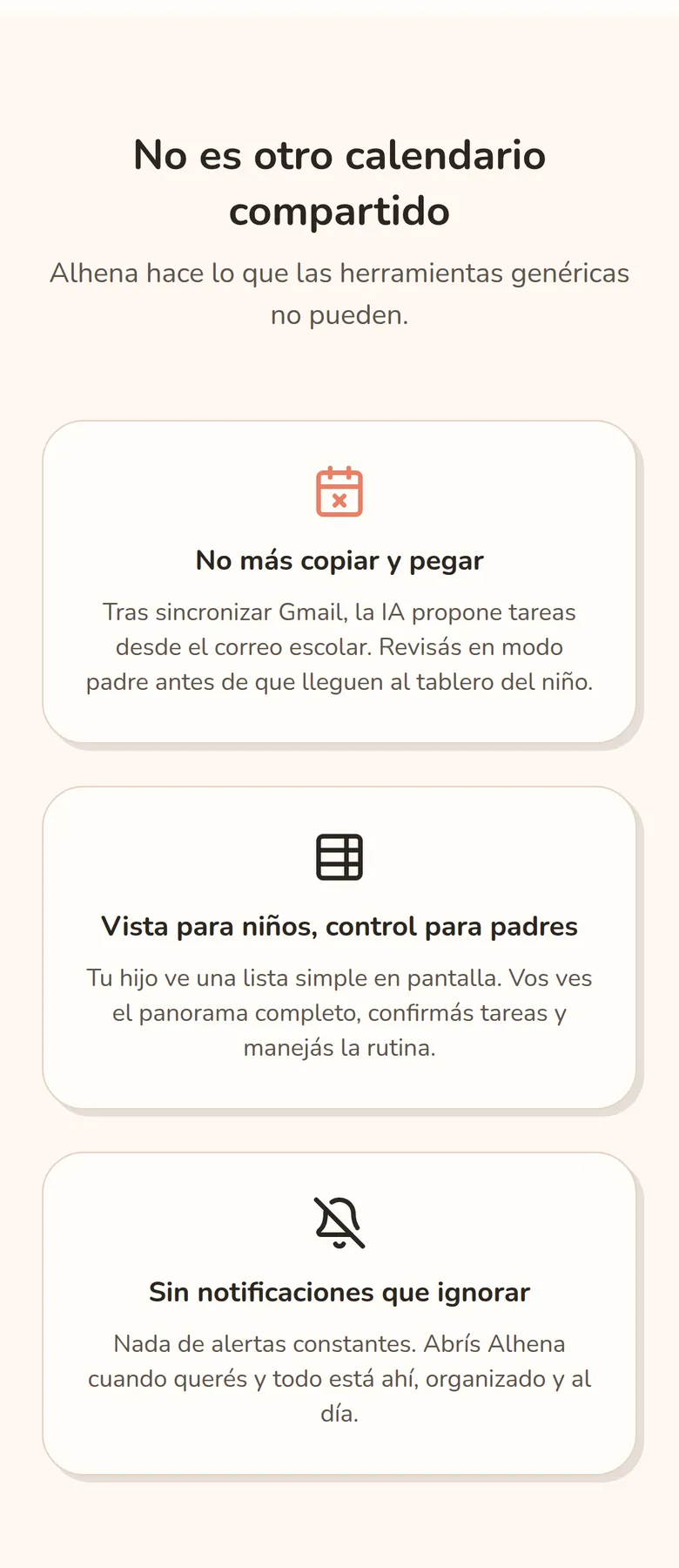
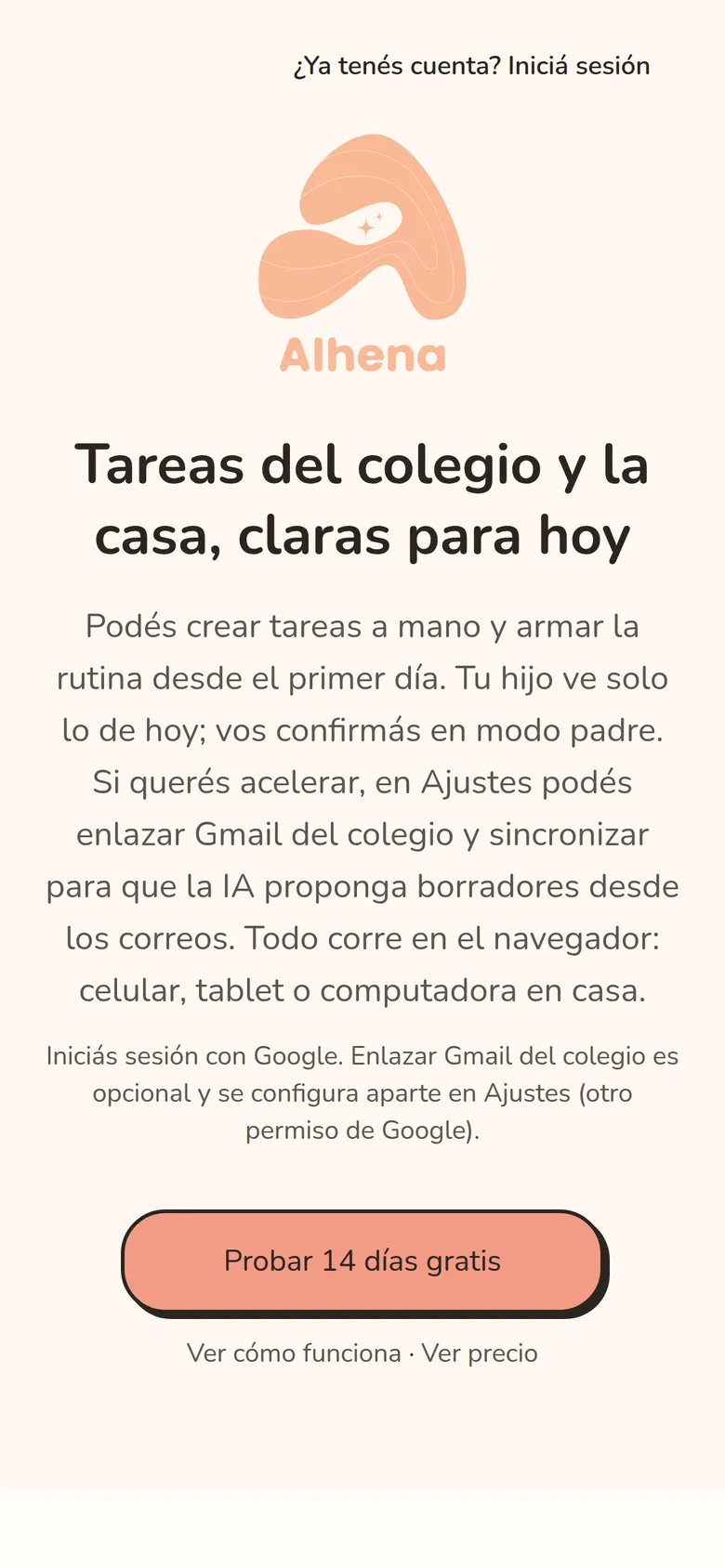
Notices pile up in a busy parent’s inbox. Someone has to read each one, find the dates and write the task down. Alhena reads mail from one sender, which a parent can change in Settings, and an AI model turns each message into draft tasks. The app is in Spanish and runs in the browser on a phone, tablet or computer.
One rule drives the design: the AI only drafts. A parent reviews each draft, then approves or dismisses it. Only approved drafts become tasks. We designed and built Alhena.
What we built
A read-only Gmail connection
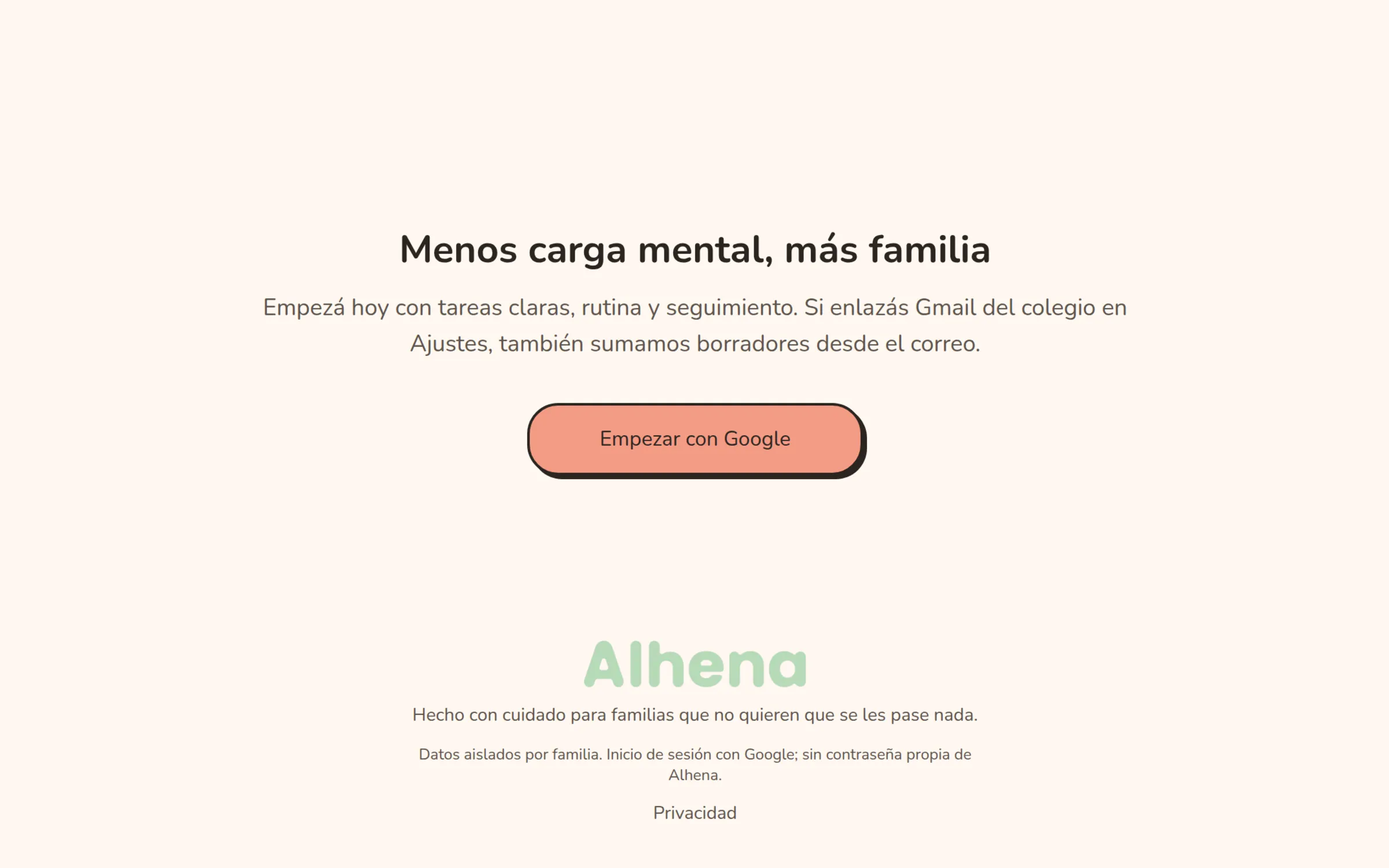
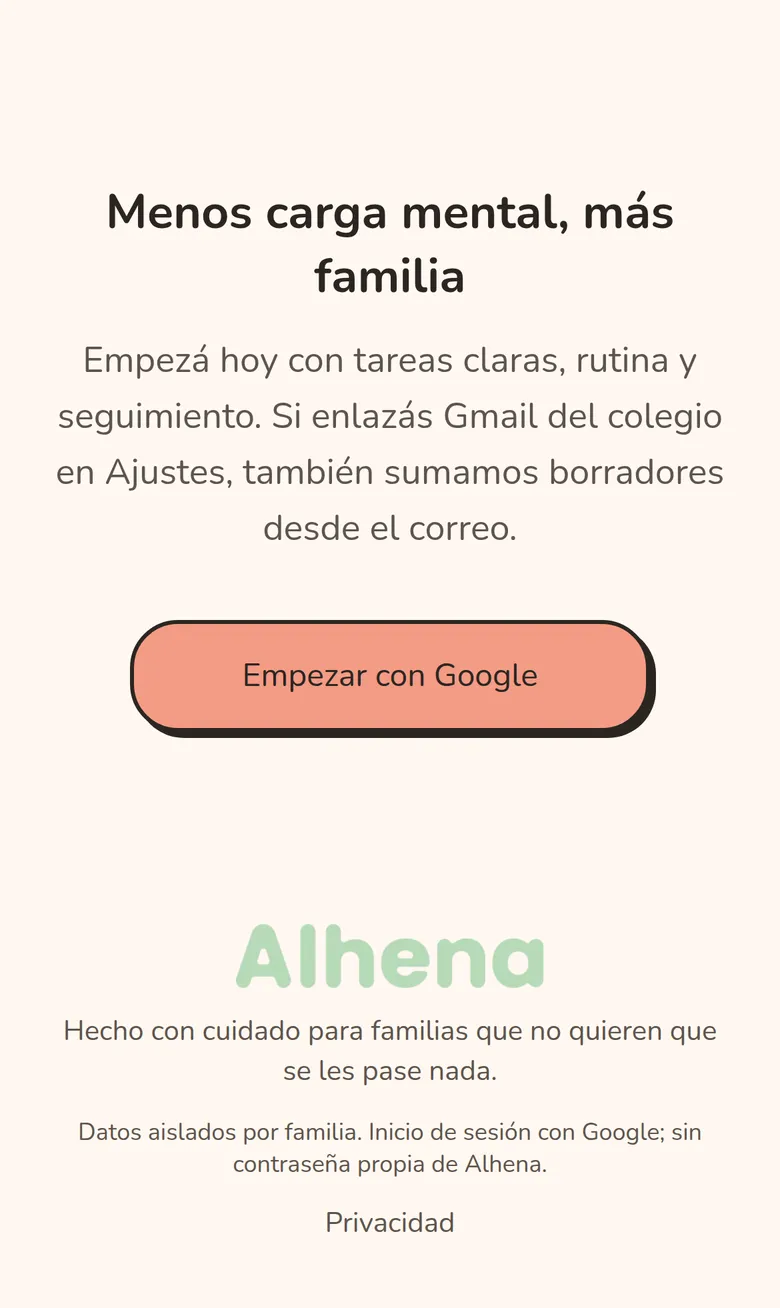
A parent links Gmail with read-only permission, asked for separately from sign-in. Alhena keeps only mail from one sender, which a parent can change, and drops the rest before saving it. Mail is read when the parent presses sync, never in the background.
AI that drafts, never decides
Each email goes to an AI model that must answer in a fixed format. The reply is checked against that format again, and any link not found in the original email is removed. Each result is saved with its model and a trace ID.
A parent signs off first
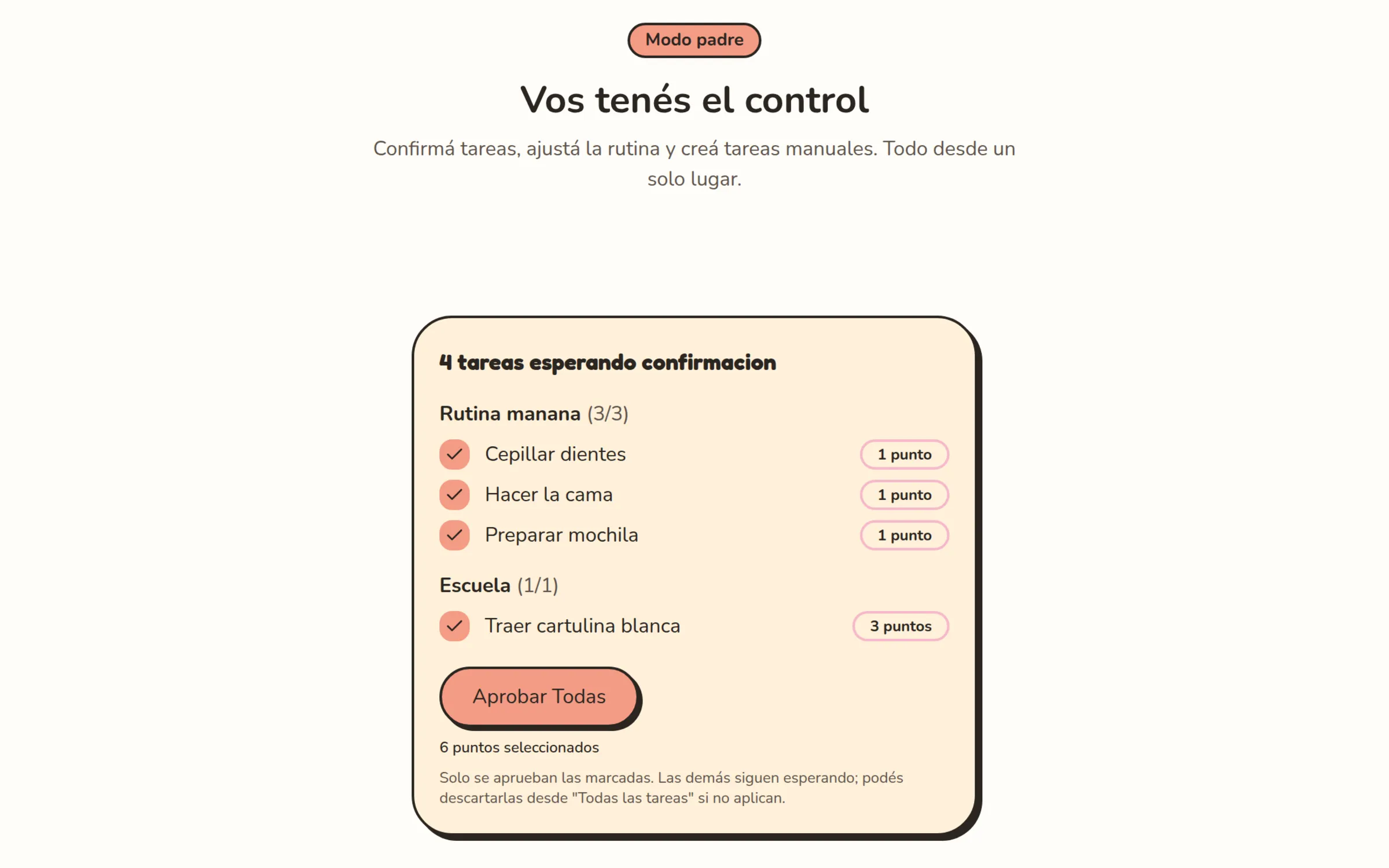
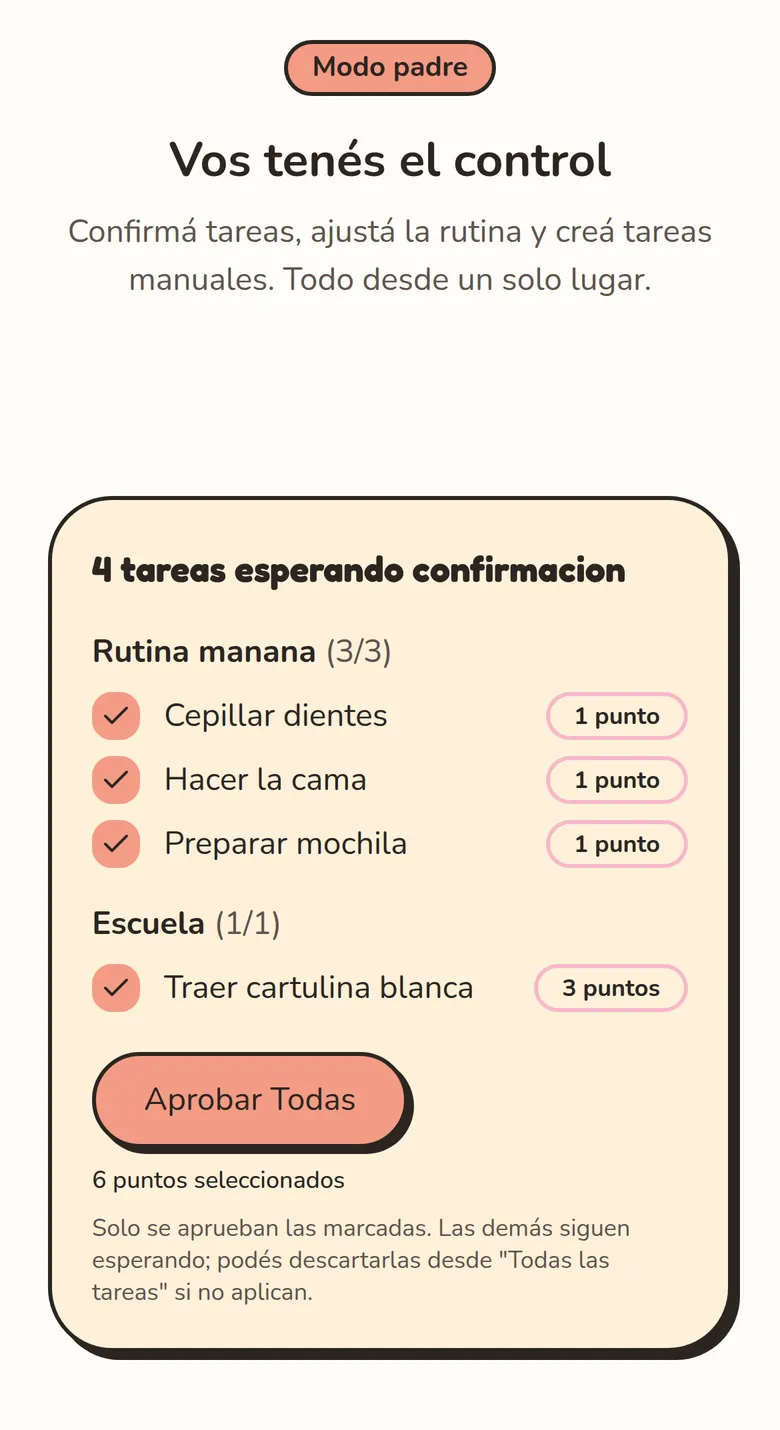
Nothing from email becomes a task until a parent approves it. Drafts wait in a review queue, where the parent can open the original email, then approve or dismiss it. Tasks marked done also wait for a parent to confirm them.
Separate data for every family
The first Google sign-in creates a family on the spot. Tables that hold family data carry a family ID, and the signed-in session decides which family a call can reach. Other caregivers join by invitation.
Invite another caregiver
A parent enters another caregiver’s email address and gets a link and a QR code to share. The link expires after seven days and can be revoked before it is used. The invited person signs in with Google using that address.
Checked on every push
Every push and pull request to main runs code-quality checks, the unit tests, a coverage report, automatic architecture checks and a production build. The architecture checks stop the build if AI or Gmail code is pulled into the browser.
Results
- the only Gmail permission the app asks for
- Read-only
- only mail from one sender is kept; a parent can change which
- 1 sender
- AI drafts that become tasks without a parent’s approval
- 0
- is the only way to sign in; Alhena keeps no password of its own
- from the first change to the last, inclusive: 6 to 17 April 2026
- 12 days
- automated tests passed, 0 failed; 5 database tests skipped
- 1,321
Gallery
Stack
- Next.js
- React
- TypeScript
- Tailwind CSS
- Auth.js
- PostgreSQL
- Drizzle ORM
- Gmail API
- OpenAI API
- Vitest